



- Published on: 2026-11-05 11:30:00
How to Install and Use an Expert Advisor (EA) on MT4 and MT5
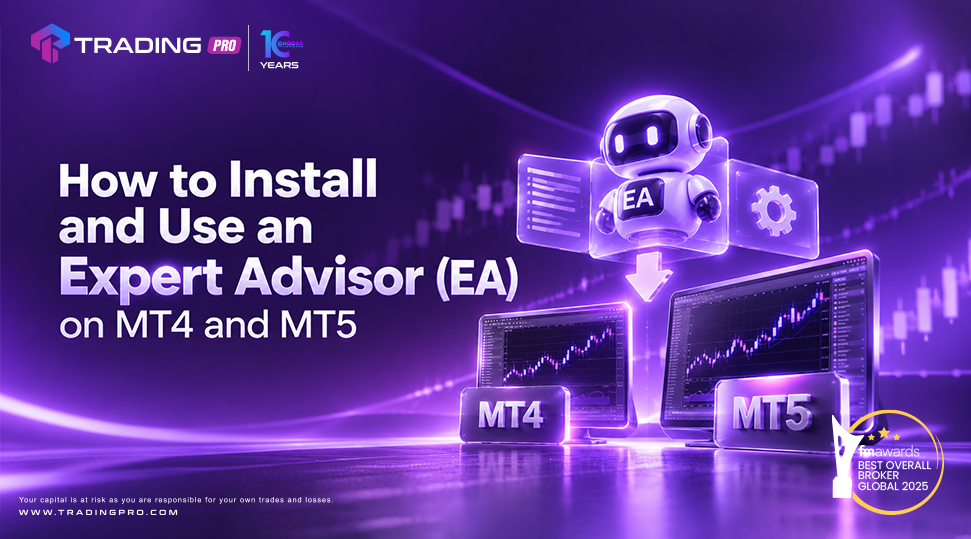
Expert advisors, often called EAs, are one of the main reasons many traders choose MetaTrader. An EA is a program that can read the market, follow a set of rules and place or manage trades for you, without you having to click every button. Setting one up for the first time can be confusing, though, because the files, folders and settings are not obvious. In this guide, we explain what an expert advisor is, how to install it on both MetaTrader 4 and MetaTrader 5, how to switch it on safely and how to test it before it ever touches real money.
What is an expert advisor?
An expert advisor is an automated trading program that runs inside your MetaTrader platform. It is written in a coding language, MQL4 for MetaTrader 4 and MQL5 for MetaTrader 5, and it follows rules that the author has programmed. Those rules might say, for example, to buy when a moving average crosses above another one, to place a stop loss a certain distance away and to close the trade at a target.
Because the EA follows its rules without emotion, some traders use it to stay consistent. It can also watch the market while you are away from the screen. However, an EA is only as good as its logic. It does not understand news, it cannot adapt on its own to a changing market and it can lose money just as fast as a manual trader if the rules are weak.
MT4 and MT5 files are not interchangeable
Before you download anything, check which platform the EA was made for. An EA built for MetaTrader 4 uses files ending in .ex4 or .mq4. An EA built for MetaTrader 5 uses files ending in .ex5 or .mq5. One does not work on the other without being rewritten, so choose the platform first, and then choose the EA that matches it.
If you have not yet installed the platform on your computer, you can follow our guides on how to download and set up MT4 or how to download and install MetaTrader 5 on desktop.
Where to get an expert advisor
There are a few common sources. Some EAs come built into the platform as samples. Others can be downloaded from the MQL5 community and marketplace, which is connected to MetaTrader. Some are sold or shared by independent developers, and some traders write their own.
Be careful with where you download from. Free files from unknown websites can be modified, and some are designed to steal account details. Download only from sources you trust, and be sceptical of any EA that promises guaranteed profits or very high monthly returns. No automated system can promise that
How to install an EA on MT4
The steps are simple once you know where the folders are.
- First, open MetaTrader 4 and go to the File menu. Choose the option to open the data folder. A window will open showing the platform's files.
- Second, open the folder named MQL4, and inside it, open the folder named Experts.
- Third, copy your EA file, the one ending in .ex4 or .mq4, and paste it into the Experts folder.
- Fourth, go back to MetaTrader 4. In the Navigator window on the left, right click on Expert Advisors and choose Refresh. If you cannot see the file, close the platform and open it again. Your EA should now appear in the list.
How to install an EA on MT5
The process on MetaTrader 5 is almost the same, with different folder names.
- First, open MetaTrader 5 and go to the File menu, then choose the option to open the data folder.
- Second, open the folder named MQL5, then the folder named Experts.
- Third, paste your EA file, ending in .ex5 or .mq5, into the Experts folder.
- Fourth, in the Navigator window, right click on Expert Advisors and choose Refresh. Your EA will appear in the list. If it does not, restart the platform.
How to turn the EA on
Installing the file is only half of the job. You also need to allow the platform to trade automatically.
Start by going to the Tools menu, choose Options and open the Expert Advisors tab. Make sure the option to allow automated trading is ticked. Some EAs also need you to allow imports of external files or web requests, but only enable these if the developer explains why and you trust the source.
Next, drag the EA from the Navigator onto a chart. A settings window will appear. On the Common tab, tick the option to allow algorithmic trading. On the Inputs tab, you can change settings such as lot size, stop loss and take profit. Click OK.
Finally, look at the button at the top of the platform, which is labelled AutoTrading on MetaTrader 4 and Algo Trading on MetaTrader 5. It needs to be switched on, and you will usually see it turn green. On the chart, a small smiley face or an active icon in the top right corner shows that the EA is running. If you see a sad face or a cross, something is blocking it, often the global switch or a permissions setting.
Test before you trade real money
This is the most important step. Do not run a new EA on a live account until you have tested it.
Start with the Strategy Tester. On both platforms, you can open it from the View menu or by pressing Ctrl and R. Choose your EA, the currency pair, the timeframe and a date range, then run the test. The tester replays historical prices and shows you how the EA would have traded, including the profit curve, drawdown and number of trades.
A backtest is useful, but it has limits. It uses past data, and a strategy that looked great on history can fail when conditions change. It can also be over fitted, which means the settings were tuned so closely to past prices that they do not work on new ones. Treat a good backtest as a reason to keep testing, not as proof.
The next step is a demo account. Run the EA on virtual money, in live market conditions, for a few weeks. You can follow our guide on how to open a demo account on MetaTrader 5 if you need help. Watch how it behaves during news and low liquidity periods, and compare the results with the backtest.
Only if the results are consistent should you consider moving to a live account, and even then, with a small position size. Our guide on how to backtest a trading strategy explains the testing process in more detail.
Settings to check before you start
A few inputs deserve a careful look. Lot size is the most important one, because it controls your risk. Many EAs come with a default size that may be too large for a small account. Check the stop loss and take profit values, and make sure each trade has a defined risk. If the EA uses a technique that adds to losing trades, understand how it works and how much margin it can consume.
Check the pairs and timeframes the EA was designed for. An EA built for a fast timeframe on one pair may behave very differently somewhere else. Also check the trading hours, since many strategies perform badly during rollover or low liquidity periods.
Keeping the EA running
An EA only trades while the platform is open and connected to the internet. If you close your computer, restart it or lose your connection, the EA stops. Some traders use a virtual private server, or VPS, which is a remote computer that stays on around the clock, so the platform can run without interruption. If you decide to use one, make sure you follow the security basics, such as using strong passwords.
Common problems and quick fixes
If the EA does not appear in the Navigator, the file is probably in the wrong folder, or it is for the wrong platform. Check the extension and the folder name, then refresh.
If the EA appears but does not trade, check that the algorithmic trading button is on, that automated trading is allowed in the options and that your account type allows it. Also check the Experts tab at the bottom of the platform, which shows error messages that explain what is happening.
If the EA opens trades with the wrong size or at the wrong time, review the input settings and check that the platform time matches the time the EA expects. Broker server time can differ from your local time.
Risks to remember
Automation does not remove risk. An EA can multiply a mistake very quickly, such as a wrong lot size or a bad setting, and it can keep trading through events you would normally avoid. Always use a stop loss, keep the size small at first and check the account regularly. Never give your account password to anyone selling an EA, and never rely on promises of guaranteed returns.
Final thoughts
Installing an expert advisor comes down to a few steps. Put the right file in the right Experts folder, refresh the Navigator, allow automated trading, drag the EA onto a chart and check that it is running. The real work comes after that: test it on historical data, run it on a demo account and start small. Used carefully, an EA can be a helpful tool in your trading, but it never replaces your own risk management.
Ready to try automated trading on a demo first? Register with TradingPRO here.


